
SnapTrellis for Mac
Screenshots that explain themselves.
Turn several screenshots into one numbered, labeled image you can send as a clear message: in a text, an email, or a doc.
No account. No tracking. Your screenshots stay on your Mac until you share them.
Video transcript
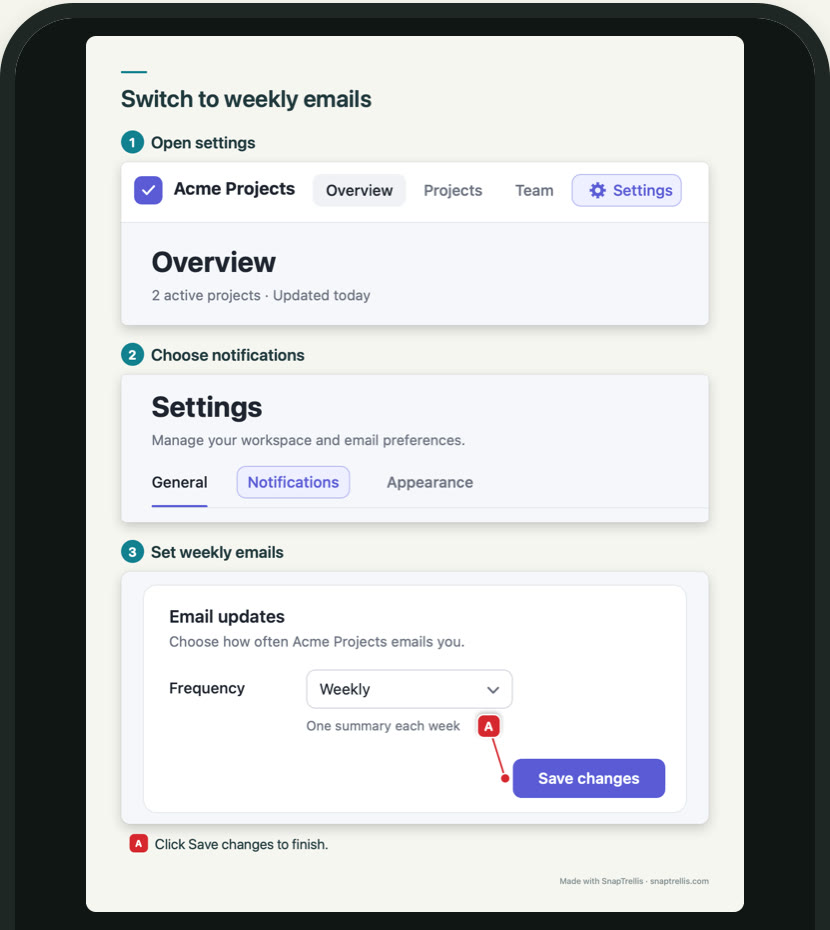
On their phone, someone writes to you: “How do I stop daily emails?” On a Mac, three screenshots of the fictional app Acme Projects are captured with ⌥⇧4 (Option-Shift-4) and labeled on the card beside each one: Open settings, Choose notifications, and Set weekly emails. Clicking Mark Up on the last card opens the editor, where marker A points to Save changes, with the note “Click Save changes to finish.” ⌥⇧C (Option-Shift-C) copies all three as one image, titled Switch to weekly emails. It’s pasted into a chat on the Mac with ⌘V and sent with Return. On their phone, the image arrives; they open it full screen, then reply: “Found it. Weekly is perfect.”
On-screen captions: They’re stuck on a step. Capture each step. Label as you go. Point out what matters. Copy all three as one image. One image. Every step. Numbered, labeled, and ready to read on a phone. Send a clear message. Now they see it. End card: SnapTrellis for Mac. Help them see the next step. Try it free on the Mac App Store. 14-day free trial · No subscription · Stays on your Mac.
How it works
Capture. Label. Send.
In seconds.
- 01
Capture
Press ⌥⇧4 (Option-Shift-4) and drag across anything. Your screenshot is copied right away and joins a named group in the Trellis, the panel at the side of your screen.
- 02
Label
Click the small card beside your capture and add a few words while the step is fresh. Nothing grabs your keyboard. To point at a detail, click Mark Up and drop a lettered marker.
- 03
Send
Press ⌥⇧C (Option-Shift-C), or click Merge on the group, to copy it as one image. Paste it into a chat, an email, a ticket, or a doc.
For the things you explain often
See how SnapTrellis
can help.
Anything you’d explain with more than one screenshot.
Pick the one that sounds like your week.
How-tos
Walk them
through it.
Settings, sign-ins, the way your team does things. Capture each step, label it as you go, and send one numbered image people can follow. Save it, and send it again the next time someone asks.
How to make step-by-step screenshots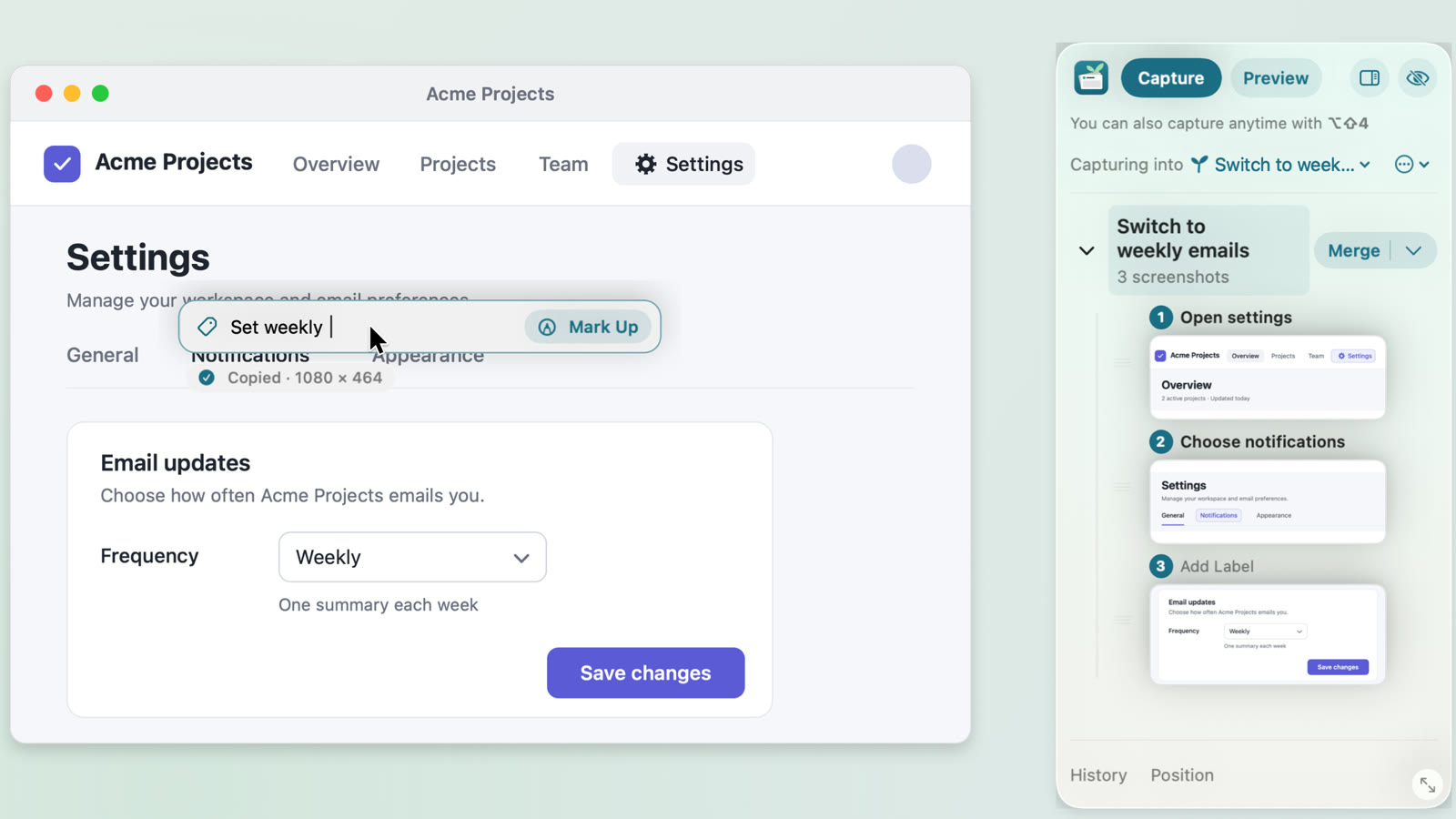
When the details matter
Point at what matters.
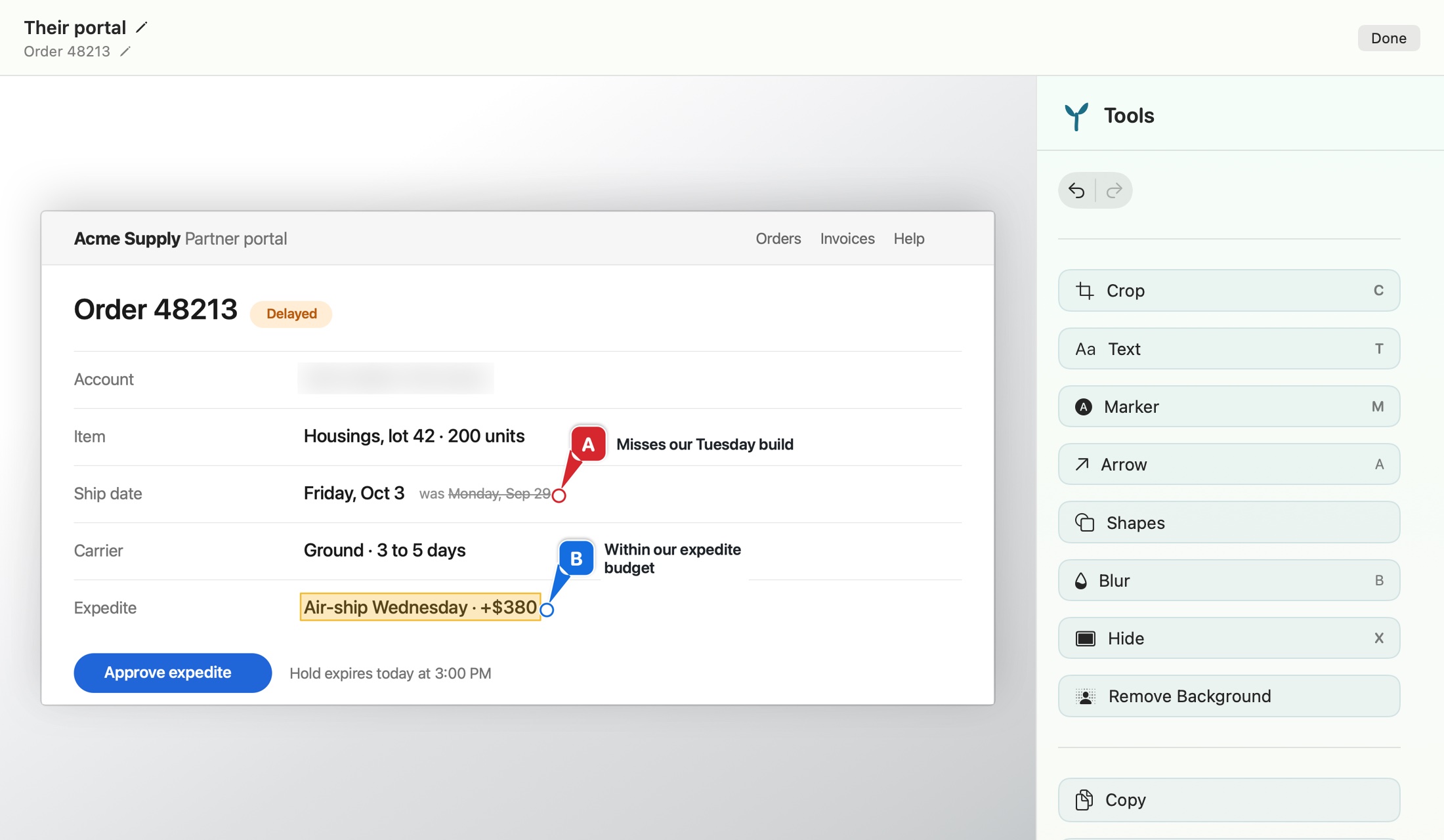
Type right on the screenshot. Add arrows, highlights, and lettered markers with a note each. Blur or hide anything private, or remove a background. One-key tools keep it fast: T for text, A for arrow, M for markers, B for blur.
Hide covers details with a solid block, right in the image you send; Blur softens them. SnapTrellis has no account and no analytics, and it can’t connect to the internet on its own: the App Store handles the trial and unlock. How privacy works
Fair question
Why not just use Shortcuts?
Shortcuts, Preview, or Freeform
Free and built in. Shortcuts’ Combine Images can join pictures you’ve already saved; Preview and Freeform let you arrange them by hand. For an occasional batch, that may be all you need.
- Fine once in a while
- Run it again for every batch
- Numbers and notes are up to you
SnapTrellis
Built for explaining with screenshots every day. They join a group as you capture them, you label them as you go, and one keystroke copies the whole group as one numbered image.
- Numbered for you, with your labels
- Lettered markers with notes
- Readable on a phone
Little things
Considered, down to the details.
Your ⌘⇧4 screenshots too
Turn on collecting, and new ⌘⇧4 screenshots also land in SnapTrellis, easy to find. The originals stay where your Mac saved them.
Same spot again
⌥⇧R captures the area you just captured, for when the next reply comes in.
Copy smaller
Right-click a capture to copy it at 75, 50, or 25 percent for a lighter send.
Out of the way
Tuck the Trellis into a slim tab, or hide it for presentations with ⌥⇧S.
Drop anything in
Drag images from Finder straight into a group.
Stays on your Mac
No account, no cloud, no tracking. You decide what leaves.
Keep a how-to
File → Save Trellis Project… keeps the screenshots, labels, and notes. Open it with ⌘O to change a step. Send the image, not the project: a project keeps the originals, before Hide and Blur.
For a team
Each person downloads SnapTrellis free and unlocks it on their own Mac.
Clean images
During the trial, merged images carry a small “Made with SnapTrellis” line. Unlocking removes it.
In plain words
What is SnapTrellis?
SnapTrellis is a Mac app that turns several screenshots into one numbered, labeled image. It’s for people who explain things with screenshots: a how-to for a coworker, changes for a client, the steps of a bug.
You take each screenshot yourself and type a short label. One keystroke copies the group as one image. Screenshots get numbers; markers inside a screenshot get letters, with their notes printed underneath.
- Runs on
- macOS 14 or later. On the Mac App Store in 174 countries and regions.
- Price
- Free to download. Capturing, labels, and markup stay free. Merging is free for 14 days, then US $19.99 once. No subscription.
- Privacy
- No account. Screenshots stay on your Mac until you share them.
- What it doesn’t do
- Record your clicks, capture scrolling pages, record video, or make cloud links. It’s for the Mac only, not Windows or phones.
Why SnapTrellis exists
It started with
a messy work habit.
Screenshots taken in a hurry, texted to people who needed to move fast. They got lost. They got mislabeled. The context arrived in pieces, one image at a time, with a rushed explanation trailing behind.
SnapTrellis is the fix: a place where related screenshots stay together, carry their own labels, and go out as one clear message.
SnapTrellis for Mac
Send the screenshots together.
Capture a few screenshots. Give each one a label. Send one clear image. Merging is free for 14 days, then $19.99 once; capturing and markup stay free. No subscription, no account.